
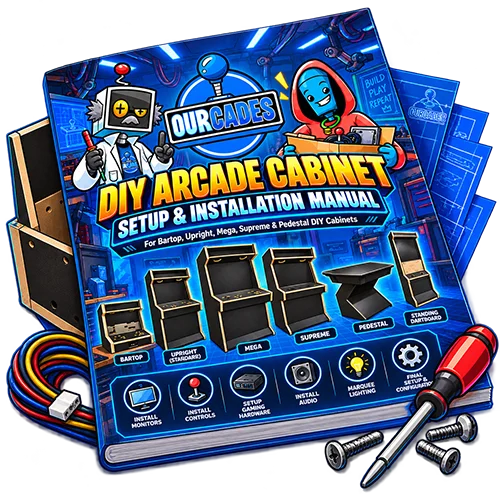
Getting Started with Your DIY Cabinet
Getting Started
Welcome to the Ourcade DIY Arcade Cabinet Setup & Installation Guide!
Your arcade adventure starts here!
Your Ourcade DIY cabinet arrives professionally assembled and ready for you to install your preferred gaming hardware, monitor, arcade controls, speakers, lighting, and other electronics.
Unlike traditional flat-pack arcade kits, your cabinet’s main structure is already assembled. This allows you to focus on creating your own custom gaming experience without building the cabinet from individual wood panels.
This guide walks you through the installation process, from unpacking your cabinet and installing your monitor to setting up your controls and making your final connections.
Important: Ourcade DIY cabinets do not include gaming electronics, monitors, arcade controls, speakers, or electrical components unless specifically identified as included with your order.
Some procedures in this guide apply only to certain cabinet models or selected options.
Let’s bring your arcade to life!
Important Safety Information
Before beginning your DIY arcade installation, please review these important safety guidelines.
General Safety
- Place your cabinet on a stable, level surface.
- Use two people when lifting or positioning heavy components.
- Keep the cabinet and all electrical equipment disconnected from power during installation.
- Use appropriate protective equipment when drilling, cutting, or handling materials.
- Verify that all installed components are compatible with your cabinet.
- Avoid overtightening screws in melamine, particleboard, or plexiglass.
- Ensure installed hardware does not interfere with access panels or other components.
Electrical Safety
Your DIY cabinet does not arrive with preinstalled electrical wiring.
Customers are responsible for installing their own power components and completing electrical connections.
Mains-voltage wiring should be completed by a qualified electrician. Follow all applicable electrical codes and component manufacturer instructions.
Never cut or splice a standard power strip cord to connect it to the cabinet power switch.
Cabinet Stability
Upright cabinets should be placed on level flooring. We recommend suitable customer-supplied anti-tip wall anchoring hardware.
Ventilation
Provide adequate airflow around your installed electronics. Avoid blocking fans, vents, and cooling components.
Always follow the safety and installation instructions supplied by your hardware manufacturers.
Tools and Equipment You'll Need
Your Ourcade DIY cabinet arrives assembled, so extensive woodworking tools are not required for the cabinet structure.
Recommended Basic Tools
- Phillips screwdriver.
- Power drill or electric screwdriver.
- Appropriate drill bits.
- Utility knife with a sharp blade.
- Measuring tape or ruler.
- Pencil or suitable marking tool.
Customer-Supplied Hardware and Equipment
Depending on your configuration, you may also need:
- Monitor and compatible VESA screws.
- Gaming system.
- Arcade buttons and joysticks.
- Control encoders and wiring.
- Speakers and audio equipment.
- Marquee lighting.
- Internal surge protector or power strip.
- Video and power cables.
- Mounting screws and cable management accessories.
- Ventilation equipment.
Additional tools may be required for optional hardware, ventilation cutouts, or specialized controls.
Check the contents of your order before beginning installation.
Receiving and Unpacking Your Cabinet
Your Ourcade DIY arcade cabinet is shipped fully assembled, secured to a pallet, and protected inside a wooden shipping crate.
Delivery is provided through curbside freight service with liftgate assistance.
Unpacking Instructions
- Inspect the outside of the shipping crate for visible damage before unpacking.
- Document any shipping damage and follow the Ourcade shipping and delivery policy for reporting it.
- Carefully remove the protective wooden crate and packaging.
- Avoid cutting into the cabinet, artwork, or finishing materials when removing packaging.
- Locate any separately supplied components, plexiglass, ABS materials, and mounting hardware.
- Inspect the cabinet for visible damage.
- With appropriate assistance and moving equipment, position the cabinet in its intended location.
Important: Freight delivery does not include carrying the cabinet indoors, moving it upstairs, unpacking, or installing electronics.
We recommend having at least two people available to receive and move your cabinet.
Understanding Your Cabinet
Your Ourcade DIY cabinet features a fully assembled cabinet structure with a black melamine interior.
Cabinet Features
- Solid bottom panel for customer-installed electronics.
- Removable control panel top.
- Removable control panel box.
- Factory-prepared rear power switch opening.
- Model-specific cabinet access panels.
- Preinstalled VESA monitor mounting system on applicable models.
- Screen ABS and clear plexiglass on applicable models.
- Marquee compartment and speaker openings on bartop and upright models.
The cabinet does not include an additional interior shelf.
There are no factory-cut ventilation openings.
Model Differences
Bartop and upright cabinets feature removable rear access panels secured with screws.
Pedestal cabinets feature a hinged lower front access panel.
Pedestal cabinets do not have integrated monitors, marquees, or built-in audio systems.
Always follow the instructions applicable to your specific cabinet model.
Opening the Cabinet and Access Panels
You will need access to the cabinet interior during installation.
Bartop and Upright Cabinets
- Locate the rear access panel.
- Remove the screws securing the panel.
- Carefully remove the panel.
- Set the panel and screws aside in a safe location.
- Use the opening to access the monitor mount, electronics area, and internal wiring.
After installation, reinstall the panel using its original screws.
Pedestal Cabinets
Pedestal cabinets use a hinged lower front access panel.
Gently swing the panel open to access the interior.
The panel is free-floating and does not have a latch, magnet, or retaining screws holding it closed.
Control Panel Access
The control panel top can also be removed to access the control panel box and installed controls.
Keep all removed hardware organized for reassembly.
Monitor & Display Installation
Installing Your Monitor
Ourcade DIY cabinets with integrated monitor openings include a preinstalled adjustable VESA mounting bracket.
Supported Monitor Sizes
- Bartop: 19–24 inches.
- Standard: 19–24 inches.
- Mega: 24–32 inches.
- Supreme: 40–43 inches.
Supported VESA Patterns
-
75 × 75 mm.
-
100 × 100 mm.
-
200 × 200 mm.
All integrated monitors are installed in horizontal landscape orientation.
Installation Instructions
- Verify that your monitor fits the cabinet and uses a supported VESA mounting pattern.
- Remove the rear access panel.
- Locate the preinstalled VESA mounting bracket.
- Position the monitor through the front screen opening, using assistance when necessary.
- Attach the monitor using compatible customer-supplied VESA screws.
- Connect the monitor’s video and power cables before securing its final position. Keep the power cable unplugged from the electrical supply.
- Adjust the monitor until it is centered and aligned with the screen opening.
- Position the monitor as close as possible to the back of the ABS screen surround, ideally flush.
- Tighten the mounting bolts securely.
- Confirm that the monitor is stable and its cables are not pinched.
Alternative Mounting Method
You may remove the VESA mounting plate, attach it to the monitor, and then reinstall the plate using its original bracket hardware.
Available Adjustments
The bracket supports vertical, horizontal, and depth adjustments through its mounting slots.
Monitor tilt is fixed and is not independently adjustable.
Important: Monitor mounting screws are not included. Use the correct screw thread and length specified by your monitor manufacturer.
Measuring and Cutting the Screen ABS
Your DIY cabinet includes 1/16-inch textured ABS material for creating a finished surround around your monitor.
The ABS is supplied uncut for the display opening because monitor dimensions vary.
ABS Orientation
- Textured side: Faces outward toward the customer.
- Smooth side: Faces inward toward the monitor and is used for marking.
Installation Instructions
- Complete your monitor installation and position the monitor correctly.
- Measure the monitor’s visible display and surrounding bezel.
- Determine the opening required in the ABS.
- Place the ABS on a protected, stable cutting surface with the smooth side facing up.
- Carefully mark the intended opening on the smooth side.
- Using a sharp utility knife and a straightedge, repeatedly score along the marked lines.
- Carefully remove the center cutout.
- Test-fit the ABS in front of the monitor.
- Make small adjustments if necessary.
Correct Fit
The ABS should slightly overlap the monitor bezel without covering any portion of the visible display.
There is no universal overlap measurement because monitor sizes and bezel designs vary.
Smoothing the ABS cut edges is generally unnecessary.
Important: Double-check all measurements before cutting. Remove only the material necessary to create the proper screen opening.
Installing the Screen Plexiglass
Your DIY cabinet’s screen plexiglass is made from 1/8-inch clear material and arrives factory-cut with predrilled mounting holes.
Protective paper is applied to both sides.
Four mounting screws are included.
Installation Instructions
- Confirm that the monitor is correctly positioned.
- Place the cut ABS screen surround in position.
- Inspect the plexiglass edges. Minor smoothing may be needed.
- Carefully remove the protective paper from both sides of the plexiglass.
- Position the clear plexiglass over the ABS.
- Align the plexiglass mounting holes with the factory-prepared cabinet holes.
- Install the four included mounting screws, two on each side.
- Tighten the screws carefully and evenly.
Important: Do not overtighten the screws, as excessive pressure may damage the plexiglass.
The plexiglass holds the ABS in place. No separate ABS fasteners or adhesive are required.
The finished arrangement, from front to back, is:
Clear Plexiglass → Textured ABS → Monitor
Control Panel & Arcade Controls
Removing the Control Panel
The control panel is designed to be removable for installing arcade buttons, joysticks, and control electronics.
Removing the Control Panel Top
- Locate the screws securing the control panel top.
- Remove the mounting screws.
- Carefully lift the control panel top.
- Set the panel on a protected surface.
- Access the underside to install your arcade controls.
The number of mounting screws varies by cabinet model and control panel size.
Removing the Control Panel Box
The control panel box is secured using six screws located inside the box.
- Remove the control panel top.
- Locate the six internal mounting screws.
- Remove the screws.
- Carefully lift or separate the control panel box from the cabinet.
The box has a solid bottom suitable for mounting control encoders and an open rear section for routing wiring into the cabinet interior.
Reassembly Order
Reinstall the control panel box first, followed by the control panel top.
Preparing Control Panel Artwork
If you selected control panel artwork when ordering, the artwork arrives already applied to the panel.
You will need to carefully open the artwork over the factory-prepared control holes before installing buttons and joysticks.
Instructions
- Remove the control panel top.
- Locate the button, joystick, and optional specialty control openings.
- Using a sharp utility knife, carefully cut the artwork along the inside edge of each existing opening.
- Remove the excess artwork covering the holes.
- Check that the openings are clear.
- Repeat for all required control openings.
Take your time to avoid damaging the surrounding artwork.
If you did not select control panel artwork, this step is unnecessary.
Preparing Optional Control Panel Plexiglass
If you selected the optional control panel plexiglass upgrade, the plexiglass arrives already installed on the control panel.
The plexiglass is 1/8-inch clear material, factory-cut to match your selected control layout.
Protective paper is applied to the top surface only.
Instructions
- Remove the control panel mounting screws.
- Carefully lift off the control panel plexiglass.
- Remove the protective paper from the top surface.
- Align the plexiglass with the control panel openings.
- Reposition the plexiglass.
- Reinstall the control panel mounting screws as appropriate for your installation sequence.
The installed buttons and joysticks also help secure the plexiglass.
No additional dedicated plexiglass mounting screws are required.
If you did not select this upgrade, skip this section.
Installing Arcade Buttons
Ourcade DIY control panels use standard 30 mm button openings unless a different size was requested when ordering.
Arcade buttons, switches, encoders, and wiring are customer-supplied.
Button Installation Instructions
- Remove the control panel top to access its underside.
- Prepare any selected control panel artwork and optional plexiglass.
- Confirm that the button openings are clear.
- Insert a compatible arcade button through its opening from the top.
- From underneath the panel, thread the retaining nut onto the button.
- Tighten the retaining nut until the button is secure.
- Repeat for all remaining buttons.
- Install the required switches and wiring according to your selected button and encoder manufacturers’ instructions.
Do not overtighten the retaining nuts.
Ensure each button operates freely after installation.
The number and arrangement of buttons depend on your selected control panel configuration.
Installing Arcade Joysticks
Joystick shaft openings are factory-cut according to your selected control panel layout.
Joystick mounting screw holes are not predrilled.
Joysticks mount from underneath the control panel.
Installation Instructions
- Remove the control panel top.
- Position the joystick beneath its prepared shaft opening.
- Center the joystick shaft in the opening.
- Align the joystick mounting plate.
- Mark the mounting screw locations.
- Carefully drill appropriately sized pilot holes using a depth stop.
- Secure the joystick mounting plate with suitable customer-supplied wood screws.
- Check joystick movement in all directions.
- Repeat for additional joysticks.
Important: Do not drill or drive mounting screws through the top surface of the control panel.
The screws must be short enough to securely mount the joystick without penetrating the panel.
Joystick models and mounting hardware vary. Follow the manufacturer’s instructions for your selected joystick.
Installing an Optional Trackball
If you ordered your cabinet with a trackball opening, the standard configuration is prepared for the Ultimarc U-Trak 3-inch trackball.
The trackball opening and mounting holes are factory-prepared.
General Installation Instructions
-
Remove the control panel top.
-
Locate the factory-prepared trackball opening.
-
Position the compatible U-Trak trackball assembly according to the manufacturer’s installation instructions.
-
Align the trackball with the prepared mounting holes.
-
Secure the assembly using the appropriate customer-supplied mounting hardware.
-
Install the required interface electronics and wiring.
-
Connect the trackball to your gaming system.
-
Test trackball movement before reassembling the control panel.
If optional control panel plexiglass was selected, its opening is prepared to match the trackball configuration.
Trackball hardware, interfaces, and wiring are not included with the standard DIY cabinet.
Installing an Optional Spinner
If you ordered a spinner opening, the standard configuration is prepared for the Ultimarc SpinTrak spinner.
The spinner shaft opening is factory-cut.
Additional mounting holes, if required, must be prepared by the customer.
General Installation Instructions
-
Remove the control panel top.
-
Locate the spinner opening.
-
Check the fit of your spinner assembly.
-
Prepare any additional mounting holes required by the spinner manufacturer.
-
Install the spinner assembly.
-
Attach the customer-supplied spinner knob.
-
Connect the required USB interface and wiring.
-
Connect the spinner to your gaming system.
-
Test the spinner before reassembling the control panel.
Use the spinner manufacturer’s instructions for hardware-specific installation requirements.
Spinner assemblies, knobs, USB interfaces, wiring, and mounting hardware are customer-supplied.
Installing Control Encoders and Wiring
Your DIY control panel box features a solid bottom that can be used for mounting control encoders.
The rear of the control panel box is open to the main cabinet interior, allowing control wiring to pass through.
General Installation Instructions
-
Select a control encoder compatible with your gaming system and arcade controls.
-
Choose a secure mounting location inside the control panel box.
-
Mount the encoder using suitable customer-supplied hardware.
-
Connect the arcade buttons and joysticks according to the encoder manufacturer’s instructions.
-
Organize the wiring to avoid interfering with moving joystick components.
-
Route the encoder connection through the open rear of the control panel box.
-
Connect the encoder to the gaming system.
-
Test all controls before completing reassembly.
Different encoders have different wiring arrangements.
Always follow the instructions provided with your selected encoder.
The DIY cabinet does not include an encoder or control wiring unless specifically identified in your order.
Gaming System & Audio Installation
Installing Your Gaming System
Your Ourcade DIY cabinet can accommodate customer-selected gaming electronics, including Raspberry Pi systems, gaming PCs, and other compatible hardware.
The cabinet includes a solid bottom panel that can be used for mounting electronics.
General Installation Instructions
-
Select a suitable location inside the cabinet for your gaming system.
-
Confirm that the system will fit and has adequate clearance for cables and airflow.
-
Secure the system using appropriate customer-supplied mounting hardware.
-
Connect the monitor using HDMI, DisplayPort, or another supported video connection.
-
Connect the control encoder or other arcade input hardware.
-
Connect the audio system, if applicable.
-
Route power and signal cables neatly.
-
Verify that cooling fans and ventilation paths are unobstructed.
-
Complete the gaming system’s setup using its manufacturer’s instructions.
Important: Your DIY cabinet does not include a gaming system, operating system, games, or software unless specifically identified as part of your order.
Gaming hardware and software configuration are customer-managed.
Installing Speakers and Audio Equipment
Bartop and upright DIY arcade cabinets feature two factory-cut 4-inch speaker openings beneath the marquee.
The speaker openings are positioned on the left and right sides and face downward.
General Installation Instructions
-
Access the speaker mounting area.
-
Select compatible speakers for the prepared openings.
-
Position each speaker at its opening.
-
Secure the speakers using appropriate customer-supplied mounting hardware.
-
Install speaker grilles if desired.
-
Connect the speakers to your amplifier or compatible audio equipment.
-
Connect the audio system to your gaming hardware.
-
Test the speakers before closing the cabinet.
Customers supply the speakers, grilles, amplifier, wiring, and mounting hardware.
Pedestal cabinets do not include integrated speaker openings or an audio system.
Follow the instructions supplied with your selected audio equipment.
Marquee & Lighting Installation
Installing the Marquee Plexiglass
Bartop and upright DIY cabinets include a marquee compartment and clear marquee plexiglass.
The marquee plexiglass is supplied loose and does not have protective paper.
If marquee artwork was selected, it arrives already applied to the plexiglass.
Installation Instructions
-
Locate the marquee retaining strips.
-
Remove the screws securing the retaining strips.
-
Carefully remove the strips.
-
Position the marquee plexiglass in the marquee opening.
-
Reinstall the retaining strips.
-
Secure the strips using the original screws.
Avoid overtightening the retaining strip screws.
Important: Pedestal cabinets do not include a marquee.
If you plan to install marquee lighting, complete that work before closing the marquee compartment.
Installing Marquee Lighting
Ourcade DIY bartop and upright cabinets include universal lighting mounting brackets inside the marquee compartment.
Marquee lighting and electrical components are not included.
General Installation Instructions
-
Remove the marquee plexiglass and retaining strips if installed.
-
Locate the preinstalled lighting mounting brackets.
-
Select a compatible customer-supplied lighting fixture.
-
Mount the fixture securely according to its manufacturer’s instructions.
-
Route the lighting cables into the main cabinet interior through the open marquee compartment.
-
Connect the lighting using the manufacturer’s approved power method.
-
Test the lighting.
-
Reinstall the marquee plexiglass and retaining strips.
Customers supply all lighting fixtures, power supplies, and wiring.
Ensure the selected lighting system is compatible with the available mounting space and power requirements.
Pedestal cabinets do not have a marquee lighting compartment.
Power, Wiring & Ventilation
Rear Power Switch Opening
Your Ourcade DIY cabinet includes a factory-prepared opening on the rear for a combination power inlet and illuminated rocker switch.
The opening is designed for a compatible module such as the 3Dman Rocker Switch Socket Module.
Compatible Switch Reference:
https://www.amazon.com/dp/B07RRY5MYZ
The power switch, mounting screws, external power cord, and electrical wiring are customer-supplied.
The switch is secured using mounting screws.
Important Electrical Safety Notice
Your DIY cabinet does not arrive with preinstalled electrical wiring.
Electrical installation and connections are the customer’s responsibility.
Mains-voltage wiring should be completed by a qualified electrician in accordance with applicable electrical codes and component manufacturer instructions.
This guide does not provide mains-voltage wiring diagrams or instructions for connecting the switch terminals.
Installing an Internal Power Strip
We recommend using a properly rated, customer-supplied internal surge protector or power strip for compatible gaming electronics.
The recommended mounting location is an interior side wall.
General Mounting Instructions
-
Select a suitable power strip with manufacturer-approved mounting holes.
-
Choose an accessible location on the cabinet’s interior side wall.
-
Verify that the mounting location will not interfere with installed electronics or cables.
-
Keep the power strip disconnected from the electrical supply.
-
Secure the power strip using appropriate customer-supplied screws and its manufacturer-approved mounting method.
-
Connect compatible equipment according to the power strip manufacturer’s instructions.
Do not modify, cut, or splice the power strip’s original power cord.
Do not exceed the power strip’s electrical rating.
Keep electrical connections accessible and clear of moving components or sharp edges.
Cable Routing and Organization
Proper cable organization helps create a clean installation and prevents interference with installed components.
Your DIY cabinet provides open internal pathways between the control panel box and main cabinet interior.
The marquee compartment also opens into the main cabinet interior on applicable models.
Recommended Cable Routing
-
Identify the required connections between your controls, monitor, gaming system, audio equipment, and power components.
-
Route cables through the available open interior pathways.
-
Leave enough slack to avoid pulling on connectors.
-
Keep wiring clear of joystick mechanisms and moving components.
-
Avoid pinching wires between removable cabinet parts.
-
Keep cables away from sharp edges and heat-producing components.
-
Secure loose wiring using customer-supplied cable ties or clips.
-
Confirm that all access panels can be reinstalled without trapping cables.
The cabinet does not include cable management accessories.
There are no dedicated factory cable-routing holes beyond the prepared power switch opening. Use the existing open cabinet pathways where applicable.
Ventilation and Cooling
Adequate ventilation is recommended for all enclosed gaming systems, including Raspberry Pi and gaming PC installations.
Ourcade DIY cabinets do not include factory-cut ventilation openings or preinstalled cooling fans.
Customers are responsible for selecting and installing their preferred ventilation components.
Ventilation Planning
-
Review the cooling requirements of your gaming hardware.
-
Identify suitable intake and exhaust locations based on your cabinet and electronics.
-
Check that the proposed openings will not interfere with structural components or installed hardware.
-
Prepare any necessary ventilation openings using appropriate tools.
-
Install your selected fans and vents according to their manufacturers’ instructions.
-
Connect the fans using a compatible customer-selected power method.
-
Verify that airflow is unobstructed before operating the system.
Optional Dust Filters
Dust filters are entirely optional and may be installed at the customer’s discretion.
Fan size, placement, power method, and ventilation configuration depend on your specific electronics.
No universal fan model or ventilation layout is required.
Pedestal Arcade Installation
Pedestal Arcade Setup
Ourcade DIY pedestal cabinets are designed as standalone arcade control stations that connect to an external monitor or television.
Unlike bartop and upright cabinets, pedestal models do not include an integrated monitor, screen ABS, screen plexiglass, marquee, or audio system.
Pedestal Installation Instructions
-
- Position the pedestal on a stable, level surface.
- Open the hinged lower front access panel.
- Remove the control panel top to access the control panel box.
- Install your selected arcade buttons and joysticks.
- Install any optional trackball or spinner.
- Mount your control encoder inside the control panel box.
- Route control wiring into the main pedestal interior.
- Install and secure your gaming system.
- Connect the gaming system to your external display using the pedestal’s HDMI passthrough and HDMI cable provision.
- Connect your customer-supplied audio equipment as required.
- Complete the appropriate power connections.
- Test the controls, video, and audio.
- Reinstall the control panel and close the access panel.
The pedestal does not require the integrated monitor, ABS, plexiglass, or marquee installation steps described elsewhere in this guide.
Customers supply their own display, gaming electronics, controls, and applicable accessories.