
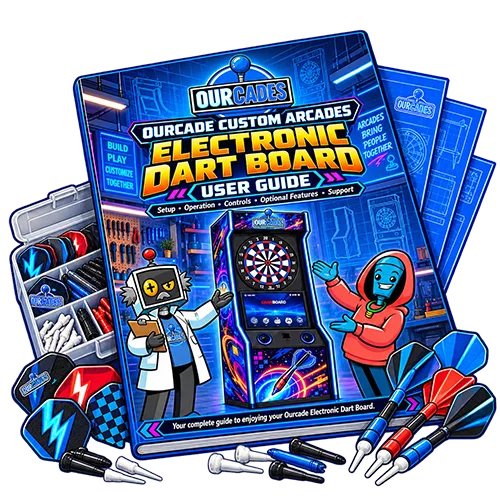
Getting Started with Your Electronic Dart Board
Getting Started
Welcome to Your Ourcade Electronic Dart Board
Welcome to your Ourcade Electronic Dart Board!
Thank you for choosing Ourcade Custom Arcades. Your custom-built electronic dartboard cabinet combines classic arcade styling with modern electronic dart technology, bringing an exciting gaming experience to your home, game room, or entertainment space.
Your cabinet features a built-in display, Android TV gaming system, integrated speakers, and compatibility with GRANBOARD electronic dartboards.
The GRANBOARD app provides access to electronic scoring, a variety of dart games, practice features, and supported online multiplayer.
This guide will help you:
- Safely position and secure your cabinet.
- Turn your system on and off correctly.
- Connect to your Wi-Fi network.
- Navigate the Android TV system.
- Set up your GRANBOARD account.
- Connect your dartboard through Bluetooth.
- Access games and online multiplayer.
- Use optional cabinet upgrades.
- Perform basic troubleshooting and cleaning.
Your cabinet arrives fully assembled, with selected equipment professionally installed by Ourcade.
Some features described in this guide are optional and may not be included with your specific configuration.
Getting to Know Your Cabinet
Your Ourcade Electronic Dart Board is a full-size arcade-style cabinet designed for electronic dart gameplay.
Main Cabinet Components
- Upper Marquee: Displays your selected cabinet artwork.
- GRANBOARD Area: Houses your electronic dartboard when included with your configuration.
- Built-In Display: Shows the Android TV interface, GRANBOARD app, games, and scores.
- Stereo Speakers: Located in the angled panel beneath the display.
- Main Power Switch: Controls power to the cabinet equipment.
- Android TV Box: Runs the GRANBOARD app and provides the gaming interface.
- Remote Control: Used for navigating Android menus.
- Wireless Mouse: Provides additional navigation and selection controls.
- Cabinet Artwork: Your selected design, professionally installed by Ourcade.
Cabinet Dimensions
- Height: 85.75 inches
- Width: 25.5 inches
- Depth: 18 inches
Depending on your order, your cabinet may also include Govee smart LED lighting, an Official GranCam, a touchscreen monitor, premium trim, or a separately supplied laser throwing line.
If your cabinet was ordered without a dartboard, you must supply and install a compatible dartboard before using the GRANBOARD gameplay features.
Cabinet Placement & Wall Anchoring
IMPORTANT: Your Ourcade Electronic Dart Board cabinet must be secured to a wall before gameplay.
Although your cabinet arrives fully assembled, customers are responsible for properly positioning and anchoring it.
Step 1 — Choose a Location
Select a stable, level floor with sufficient room for the cabinet and dart-throwing area.
Ensure the location provides access to electrical power, reliable Wi-Fi, and a suitable wall for anchoring.
Step 2 — Position the Cabinet
Carefully place the cabinet against the intended wall.
Verify that it rests securely on the floor without rocking or instability.
Step 3 — Install Anti-Tip Straps
Customers must supply their own anti-tip wall anchor straps and appropriate mounting hardware.
The straps attach near the upper rear portion of the cabinet and must be secured to suitable structural support in the wall.
Use hardware appropriate for your wall construction.
Do not drill into cabinet areas containing internal wiring or electronic components. If suitable attachment points are uncertain, contact Ourcade or a qualified installer before proceeding.
Step 4 — Verify Safety
Confirm the cabinet is securely anchored and cannot tip forward.
Do not begin gameplay until the installation is complete.
Additional Safety Reminders
- Keep the throwing area clear of people and pets.
- Never climb on or lean heavily against the cabinet.
- Keep liquids away from electronic components.
- Supervise children during gameplay.
- Use compatible soft-tip darts only.
If you are unsure how to install the anti-tip straps, consult a qualified installer.
Dartboard Height & Throwing Distance
Your Ourcade Electronic Dart Board is designed around standard soft-tip dartboard playing measurements.
Bullseye Height
5 feet 8 inches (68 inches), measured vertically from the finished floor to the center of the bullseye.
Ourcade installs the GRANBOARD at this height when included with the cabinet.
Throwing Distance
8 feet (96 inches), measured horizontally from the front face of the dartboard to the throwing line.
Setting Your Throwing Line
- Locate the front face of the dartboard.
- Measure 8 feet horizontally toward the playing area.
- Mark the throwing position on the floor.
- Ensure the throwing area is unobstructed.
- Verify the measurement before playing.
Do not measure the throwing distance from the wall or the front of the cabinet.
If you purchased the optional laser throwing line, position the projected line at the same 8-foot measurement.
Always use compatible soft-tip darts. Steel-tip darts must never be used with the GRANBOARD.
Powering On Your Electronic Dart Board
Your Ourcade Electronic Dart Board uses one main power switch to supply power to the installed equipment.
Step 1 — Connect the Power Cord
Connect the cabinet power cord to a suitable electrical outlet.
Make sure the cord is securely connected and free from damage.
Step 2 — Turn On the Main Power Switch
Locate the cabinet’s main power switch and turn it to the ON position.
The installed equipment will receive power, including the Android TV box, display, speakers, and USB-powered GRANBOARD when included.
Step 3 — Wait for Android to Load
Allow the Android TV box to complete its startup process.
The Android home screen will appear on the built-in display.
Step 4 — Open the GRANBOARD App
Using the included remote or wireless mouse, locate and open the GRANBOARD app.
The app does not launch automatically when the cabinet is powered on.
Step 5 — Connect and Play
Wait for the GRANBOARD to establish its Bluetooth connection.
After the initial setup, the board normally reconnects automatically.
Once connected, select your desired game and begin playing.
If this is your first time using the cabinet, complete the Wi-Fi and GRANBOARD account setup described in the following sections.
Android TV & GRANBOARD Operation
Using the Android TV Remote & Wireless Mouse
Your Ourcade Electronic Dart Board includes an Android TV remote and wireless mouse for navigating the system.
Both devices are useful because some Android and GRANBOARD functions may be easier to access with one control method than the other.
Android TV Remote
The remote can be used for supported functions such as:
- Navigating Android menus.
- Selecting applications.
- Opening the GRANBOARD app.
- Returning to previous screens.
- Accessing Android settings.
Available buttons and functions depend on the included remote.
Wireless Mouse
The wireless mouse can be used to:
- Select on-screen icons.
- Navigate application menus.
- Access Android settings.
- Interact with supported GRANBOARD controls.
- Select options that are difficult to reach with the remote.
Optional Touchscreen
If your cabinet includes the touchscreen upgrade, some functions can be controlled directly by touching the display.
However, not every menu or application supports touch input.
Keep the remote and wireless mouse available for functions that require them.
Connecting Your Cabinet to Wi-Fi
Your Android TV box connects to your home internet network using Wi-Fi.
An internet connection is used for GRANBOARD account services, supported online multiplayer, and software updates.
How to Connect to Wi-Fi
- Turn on your cabinet.
- Wait for the Android home screen.
- Open the Android settings menu.
- Locate Network or Wi-Fi settings.
- Enable Wi-Fi if necessary.
- Select your wireless network.
- Enter your Wi-Fi password.
- Confirm the connection.
The exact menu names may vary depending on the installed Android software version.
If Wi-Fi Does Not Connect
- Confirm your wireless router is working.
- Verify your Wi-Fi password.
- Make sure you selected the correct network.
- Check that the cabinet is within reliable wireless range.
Important: Wi-Fi and Bluetooth are different connections.
Wi-Fi connects the Android TV box to the internet.
Bluetooth connects the GRANBOARD dartboard to the Android TV box.
GRANBOARD App & Account Setup
The GRANBOARD app is preinstalled on your Ourcade Android TV gaming system.
Customers create or sign in to their own GRANBOARD account during initial setup.
Step 1 — Launch GRANBOARD
From the Android home screen, locate and open the GRANBOARD app.
Step 2 — Sign In or Create an Account
Follow the on-screen instructions to sign in to your existing GRANBOARD account or create a new one.
Complete any required account setup.
Step 3 — Connect the Dartboard
Make sure your GRANBOARD is receiving power.
Follow the app’s Bluetooth connection instructions to establish communication between the dartboard and Android TV box.
Step 4 — Confirm the Connection
Wait for the GRANBOARD app to recognize the dartboard.
Follow any additional on-screen instructions.
Step 5 — Start Playing
Browse the available games and features.
Select your preferred game and follow the app’s instructions to begin.
Please Note: The GRANBOARD app is maintained by its developer. Menus, features, account requirements, and online services may change with future updates.
GRANBOARD Bluetooth Connection
Your GRANBOARD electronic dartboard communicates with the Android TV box through Bluetooth.
The dartboard receives power through a USB connection inside the cabinet.
First-Time Bluetooth Connection
- Turn on the cabinet.
- Wait for Android to load.
- Open the GRANBOARD app.
- Confirm the dartboard is receiving power.
- Follow the app’s Bluetooth connection prompts.
- Select the GRANBOARD when prompted.
- Wait for the app to confirm the connection.
Automatic Reconnection
After the initial connection, the GRANBOARD normally reconnects automatically when the app is opened during future sessions.
You should not need to repeat the complete pairing process every time you play.
If the Dartboard Does Not Connect
- Confirm the cabinet is powered on.
- Make sure the GRANBOARD app is open.
- Allow time for automatic reconnection.
- Follow the app’s connection instructions if prompted.
- Close and reopen the app if necessary.
If the problem continues, contact Ourcade Support.
Avoid changing advanced Android Bluetooth settings unless instructed.
Playing Games & Navigating GRANBOARD
The GRANBOARD app provides access to a variety of electronic dart games, practice activities, and gameplay features.
Your Ourcade cabinet uses the app as its primary game interface.
Starting a Game
- Open the GRANBOARD app.
- Confirm the dartboard is connected.
- Browse the available game categories.
- Select your preferred game.
- Choose any available player or game settings.
- Follow the on-screen instructions.
- Begin playing.
During Gameplay
The GRANBOARD detects compatible soft-tip dart hits and sends scoring information to the app.
The built-in display shows the game interface, scores, and other supported information.
The GRANBOARD’s built-in LED lighting may react during gameplay.
Navigating Menus
Use the Android remote, wireless mouse, or supported touchscreen controls to navigate available menus.
Follow the on-screen instructions to select another game, adjust settings, or return to the main menu.
Game Rules
This guide focuses on operating your Ourcade cabinet and navigating the GRANBOARD app.
For detailed rules and instructions for individual games, refer to the information available through GRANBOARD.
Online Multiplayer
The GRANBOARD app supports online gameplay features that allow compatible users to participate in available online dart games.
Online features require a reliable internet connection and may depend on the current GRANBOARD app version and services.
Accessing Online Multiplayer
- Connect the Android TV box to Wi-Fi.
- Open the GRANBOARD app.
- Sign in to your GRANBOARD account.
- Confirm the dartboard is connected through Bluetooth.
- Navigate to the app’s online multiplayer area.
- Follow the on-screen instructions to access available matches or online features.
Online Play Tips
- Use a stable Wi-Fi connection.
- Confirm you are signed in to the correct account.
- Keep the GRANBOARD app updated.
- Follow any additional online setup requirements displayed by the app.
Some online features may have additional compatibility or account requirements.
GRANBOARD controls the availability of its online services and features.
Audio, Lighting & Optional Upgrades
Built-In Speakers & Audio Controls
Your Ourcade Electronic Dart Board includes built-in stereo speakers located in the angled panel beneath the display.
These speakers provide audio for supported GRANBOARD games, scoring announcements, and Android TV applications.
Adjusting the Volume
Use the available cabinet audio controls or Android TV volume settings, depending on your configuration.
If You Cannot Hear Sound
- Confirm the cabinet is powered on.
- Check that the volume is not muted.
- Verify the Android TV system is functioning.
- Close and reopen the GRANBOARD app if necessary.
If audio problems continue, contact Ourcade Support.
Do not open the cabinet or modify internal speaker wiring.
GRANBOARD Built-In LED Lighting
Compatible GRANBOARD models feature built-in LED lighting that reacts during gameplay.
The lighting can provide visual feedback for supported gameplay events and scoring activities.
GRANBOARD Lighting Features
- Built-in LED illumination.
- Reactive lighting during supported games.
- Visual gameplay effects.
- Available lighting behavior determined by the dartboard model and GRANBOARD software.
Any supported lighting settings can be accessed through the current GRANBOARD app interface.
Important: GRANBOARD lighting is separate from the optional Govee smart LED lighting installed around the cabinet.
Customers without optional Govee lighting can still enjoy the GRANBOARD’s built-in lighting when supported by their dartboard model.
Optional Govee Smart LED Lighting
If your Ourcade Electronic Dart Board includes optional Govee smart LED lighting, you can customize the appearance of your cabinet using the Govee Home app.
Available lighting zones include:
- Front-facing cabinet LEDs.
- Dartboard surround LEDs.
- Rear cabinet LEDs.
All selected Govee lighting is installed and tested by Ourcade before delivery.
First-Time Govee Setup
- Download the Govee Home app onto a compatible smartphone or tablet.
- Open the app and create or sign in to your Govee account if required.
- Turn on the cabinet to supply power to the installed lighting.
- Use the Govee Home app to add your lighting devices.
- Follow the on-screen connection instructions.
- Complete any required device configuration.
Connection requirements depend on the installed Govee lighting model.
Customizing Your Lighting
Depending on your installed equipment, the app may offer:
- Color selection.
- Brightness adjustment.
- Animated effects.
- Preset scenes.
- Sound-reactive lighting.
- Lighting groups.
Grouping Lighting Zones
Your optional Govee lighting zones can be grouped together for coordinated effects.
Use the app’s compatible grouping features to combine the installed zones.
You can also control individual lighting zones separately.
Troubleshooting
If a lighting device does not appear in Govee Home, confirm the cabinet is powered on and follow the app’s connection instructions.
Contact Ourcade if an installed lighting component is not functioning properly.
Optional Official GranCam Setup
If your cabinet includes the optional Official GranCam, the camera is physically installed by Ourcade and connected to the Android TV box through USB.
Customers must complete the camera’s software setup and configuration after delivery.
Getting Started
- Turn on the cabinet.
- Open the GRANBOARD app.
- Sign in to your GRANBOARD account.
- Locate the applicable camera or online-play settings.
- Follow the current GRANBOARD instructions for configuring the GranCam.
- Verify camera operation where supported.
The exact configuration process may vary depending on the GRANBOARD app version.
Important Information
- GranCam is an optional upgrade.
- Physical installation is completed by Ourcade.
- Customer software configuration is required.
- Camera features depend on current GRANBOARD compatibility.
If the Camera Does Not Work
Close and reopen the GRANBOARD app.
Review the available camera settings and follow the app’s instructions.
If the problem continues, contact Ourcade Support.
Do not open the cabinet or modify internal USB wiring.
Optional Laser Throwing Line Installation
The optional LED laser throwing line projects a visible line onto the floor to help players identify the proper throwing position.
This accessory is battery-powered, has its own dedicated on/off switch, and is supplied separately for customer installation.
Available Mounting Locations
-
Below the GRANBOARD.
-
On top of the cabinet.
Choose the location that allows the laser to project a clear throwing line without obstructing the dartboard or display.
Installation Instructions
Step 1 — Inspect the Laser
Verify that the accessory and its mounting components are complete and undamaged.
Review the instructions supplied with the laser.
Step 2 — Select the Mounting Position
Choose a secure location below the GRANBOARD or on top of the cabinet.
Do not drill into cabinet areas containing internal electronics or wiring.
Follow the accessory manufacturer’s approved mounting instructions.
Step 3 — Install Batteries
Install the battery type specified by the laser manufacturer.
Follow the correct battery orientation.
Step 4 — Turn On the Laser
Use the laser’s dedicated on/off switch.
Step 5 — Align the Throwing Line
Measure 8 feet (96 inches) horizontally from the front face of the dartboard.
Adjust the laser so the projected line appears at the correct throwing distance.
Verify the position using a tape measure.
Laser Safety
-
Never look directly into the laser beam.
-
Never aim the laser toward anyone’s eyes.
-
Avoid directing the beam toward reflective surfaces.
-
Follow the manufacturer’s safety instructions.
-
Turn off the laser when not in use.
-
Keep batteries and small components away from children.
If you are uncertain about the mounting method, contact Ourcade before installing the accessory.
Optional Touchscreen Operation
If your Ourcade Electronic Dart Board includes the optional 20-inch touchscreen display, you can interact directly with certain supported Android and GRANBOARD controls.
Using the Touchscreen
- Turn on the cabinet.
- Wait for the Android home screen.
- Touch a supported on-screen icon or control.
- Follow the application’s instructions.
- Use the remote or wireless mouse when touch navigation is unavailable.
Important Information
Touchscreen support varies by application and menu.
Not every Android or GRANBOARD function can be controlled through touch.
The included Android TV remote and wireless mouse remain necessary for certain operations.
Touchscreen Care
Use a soft microfiber cloth to clean the display.
Avoid excessive pressure, sharp objects, and harsh cleaning products.
Never spray cleaning liquid directly onto the screen.
Proper Shutdown Procedure
IMPORTANT: Always shut down the Android TV box before turning off the cabinet’s main power switch.
Following the proper shutdown procedure helps prevent interrupted software processes and potential data problems.
Step 1 — Finish Your Game
Complete or exit your current GRANBOARD game.
Step 2 — Return to Android
Use the remote or wireless mouse to access the Android TV interface.
Step 3 — Shut Down the Android TV Box
Open the available Android power controls.
Select Shut Down or Power Off.
Allow the system to complete its shutdown process.
Step 4 — Turn Off the Cabinet
Once Android has finished shutting down, turn the cabinet’s main power switch to OFF.
Important Reminders
- Do not routinely cut cabinet power while Android is running.
- Wait for shutdown to finish before switching off the cabinet.
- Turn off separately controlled optional accessories, such as the battery-powered laser throwing line, when finished.
If the Android system becomes unresponsive and cannot be shut down normally, contact Ourcade for assistance.
Shutdown, Updates & Maintenance
Software Updates & Factory Reset Policy
Your Ourcade Electronic Dart Board includes a preconfigured Android TV gaming system with the GRANBOARD app installed.
To help preserve your system configuration, please follow these update guidelines.
GRANBOARD App Updates
Customers may install normal GRANBOARD app updates when available.
These updates may include improvements, new features, and interface changes.
Android System Updates
Contact Ourcade before installing Android operating system updates or system firmware updates.
System-level changes may affect the preconfigured software environment.
Factory Reset Warning
Do not perform a factory reset on the Android TV box without contacting Ourcade first.
A factory reset may remove installed applications, saved settings, and system configurations.
If you experience software problems, contact Ourcade before attempting advanced troubleshooting or recovery procedures.
Basic Troubleshooting
If you experience a problem with your Ourcade Electronic Dart Board, begin with the basic checks below.
For issues that cannot be resolved through simple troubleshooting, contact Ourcade Support.
Cabinet Will Not Turn On
-
Confirm the power cord is securely connected.
-
Check that the electrical outlet is working.
-
Verify the main cabinet power switch is ON.
Android Home Screen Does Not Appear
-
Allow time for the Android TV box to start.
-
Confirm the cabinet is receiving power.
-
Contact Ourcade if the display remains blank.
GRANBOARD Will Not Connect
-
Confirm the cabinet is powered on.
-
Open the GRANBOARD app.
-
Allow time for Bluetooth reconnection.
-
Follow the app’s connection prompts.
Wi-Fi Is Not Working
-
Confirm your router is operating.
-
Check the network name and password.
-
Verify the cabinet is within reliable Wi-Fi range.
No Sound
-
Check the available volume controls.
-
Confirm audio is not muted.
-
Restart the GRANBOARD app if necessary.
Govee Lighting Is Not Responding
-
Confirm the cabinet is powered on.
-
Open Govee Home.
-
Check the lighting device connection status.
GranCam Is Not Working
-
Open the GRANBOARD app.
-
Review the applicable camera settings.
-
Restart the app if necessary.
Touchscreen Is Not Responding
-
Use the included remote or wireless mouse.
-
Remember that some functions do not support touch input.
When to Contact Ourcade
If basic troubleshooting does not resolve the issue, contact Ourcade Support.
Do not open electrical compartments, modify internal wiring, perform advanced repairs, factory reset Android, or install unapproved firmware.
Cleaning & General Care
Basic cleaning and proper care will help keep your Ourcade Electronic Dart Board looking and operating its best.
Always turn off the system before cleaning.
Cabinet Exterior
Use a soft microfiber cloth to remove dust and fingerprints.
Avoid abrasive cleaners, harsh chemicals, and excessive moisture.
Built-In Display
Clean gently with a microfiber cloth.
If needed, use a cleaning product specifically approved for the display.
Never spray liquid directly onto the screen.
GRANBOARD Dartboard
Keep the playing surface free of dust and debris.
Avoid liquids, harsh chemicals, and excessive force on the dartboard segments.
Electronic Components
Keep moisture away from electrical connections and installed equipment.
Do not open or modify internal electronic components.
Soft-Tip Darts
Inspect your darts regularly.
Replace damaged, worn, or bent soft-tip dart tips.
Never use steel-tip darts.
Cabinet Artwork & Trim
Clean printed surfaces gently.
Avoid scraping, peeling, abrasive cleaning materials, or unnecessary heat.
Optional Accessories
Follow the applicable manufacturer’s cleaning and care instructions for Govee lighting, GranCam, and the laser throwing line.
Customer Support
Customer Support
Need help with your Ourcade Electronic Dart Board?
Ourcade Custom Arcades is here to assist with questions about your cabinet, Android TV gaming system, installed equipment, and supported accessories.
Contact Ourcade Support
Visit our website:
https://ourcadecustomarcades.com/
Select the Contact Us page to submit your support request.
Before Contacting Support
If possible, have the following information available:
-
Your order information.
-
A description of the issue.
-
The affected component or feature.
-
Any error messages displayed.
-
Photos or videos demonstrating the problem, when helpful.
Important
Contact Ourcade before performing Android system updates, factory resets, internal electrical modifications, or advanced repairs.
Thank you for choosing Ourcade Custom Arcades!
BUILD. PLAY. REPEAT.